How to Group and Categorize Failing Tests by Root Cause
When a CI run shows dozens of failures, label each one with a root cause category and group them to see how many distinct problems you actually have
Jun 26, 2026
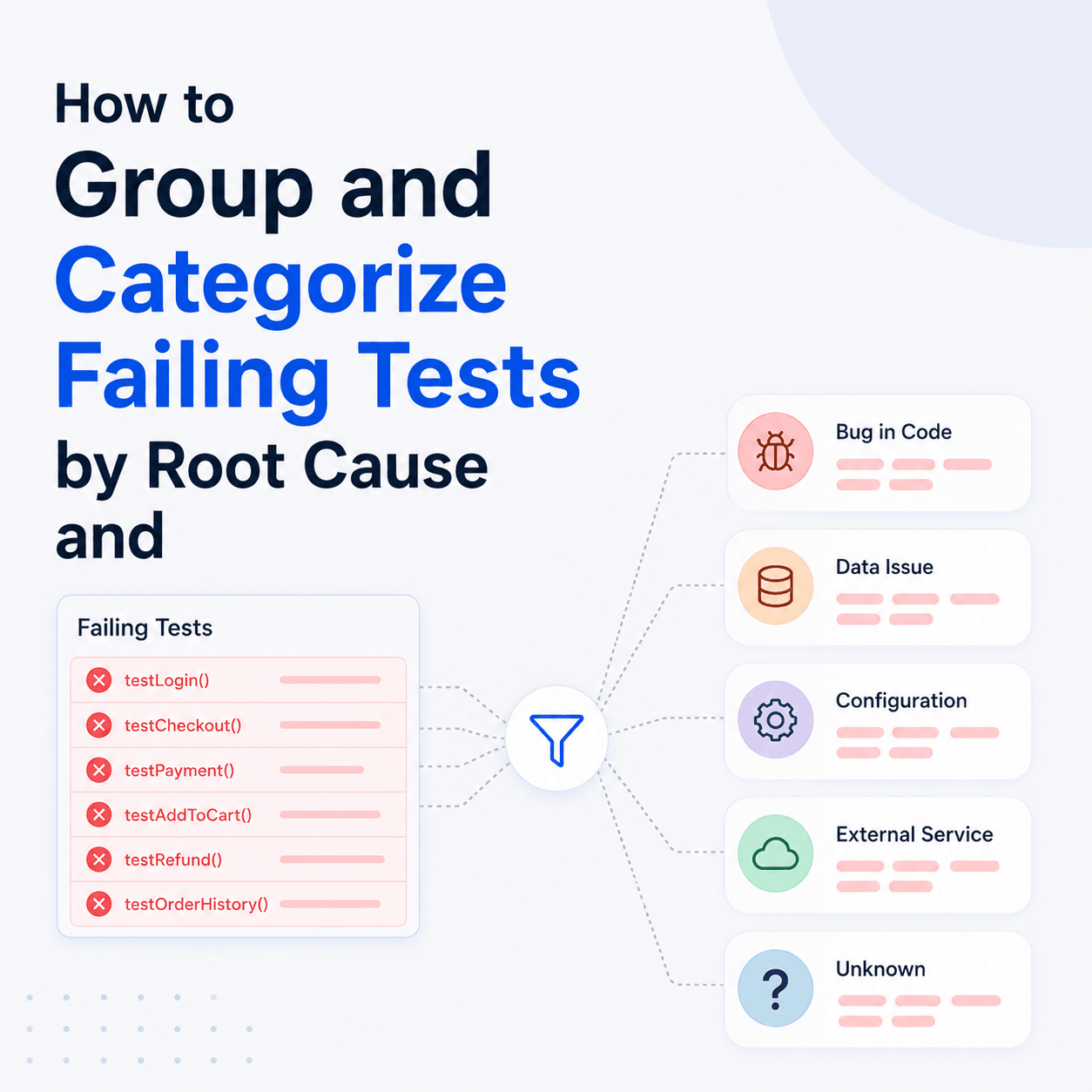
When you are triaging a CI run with a lot of failures, it helps to know how many of them share a single root cause. Tesults already gives you the failure reason and automated AI analysis for each failing test, so you can see why any individual test failed. Failure Categories, a new feature added at the request of a customer, adds a manual layer on top of that: assign a root cause category to a failing test case, then group your failures by category to see at a glance how many distinct problems you are actually dealing with.
Why add a root cause category to a failure?
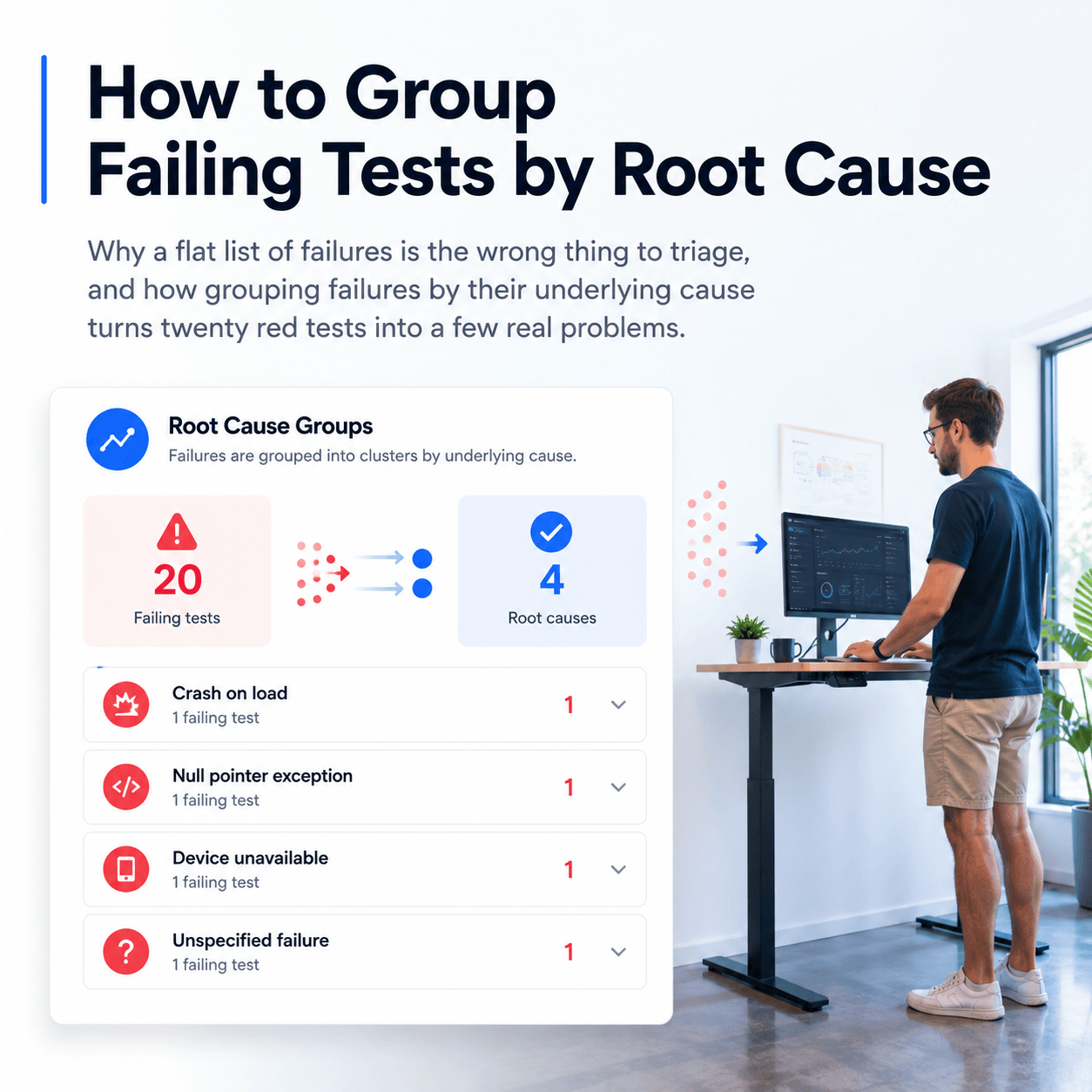
Per test, you already have good information. The failure reason and the AI test case analysis tell you why each individual test failed. What that does not show you is how the failures relate to each other across the run. Twenty failures caused by one expired credential is a five minute fix. Twenty failures from twenty unrelated bugs is a bad day. Looking at each failure on its own, the two can be hard to tell apart, and you can end up working through failures one at a time to figure out which share an underlying cause and which are genuinely separate.
A category is a label you apply once, while you are triaging, that captures your judgement about the root cause. Once failures are labelled, you can group by that label and let the view do the counting for you, rather than holding the grouping in your head.
How do you assign a category to a failing test?
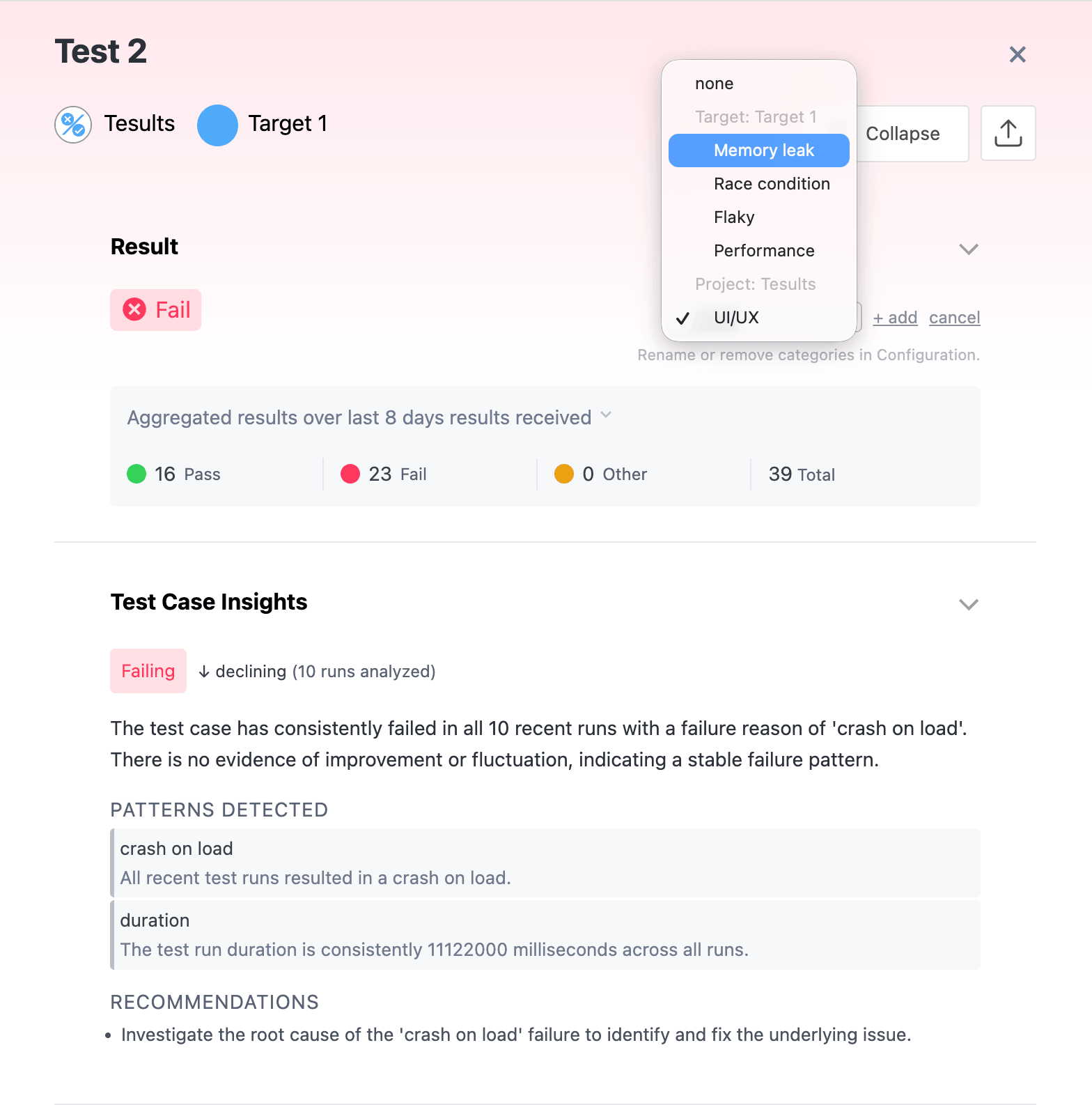
Open a failing test case in the results view to bring up its detail drawer. The drawer has a dropdown picker for assigning a category. If the one you want already exists, select it, and the assignment reflects immediately in the results list with no page refresh.
If the category does not exist yet, you can create it inline without leaving the drawer. Type a label, choose its scope, and confirm. The new category is created and assigned to the current test case in a single action, so adding a new category as you triage is one short step rather than a trip into settings.
Categories are organised by scope. A target level category applies to one target (one test job), which suits causes specific to a single suite. A project level category applies across all targets in a project, which suits causes that can show up anywhere, such as infrastructure or environment issues. You can keep up to 100 categories per scope, which leaves plenty of room for a meaningful set without getting unwieldy.
How do you see failures grouped by category?
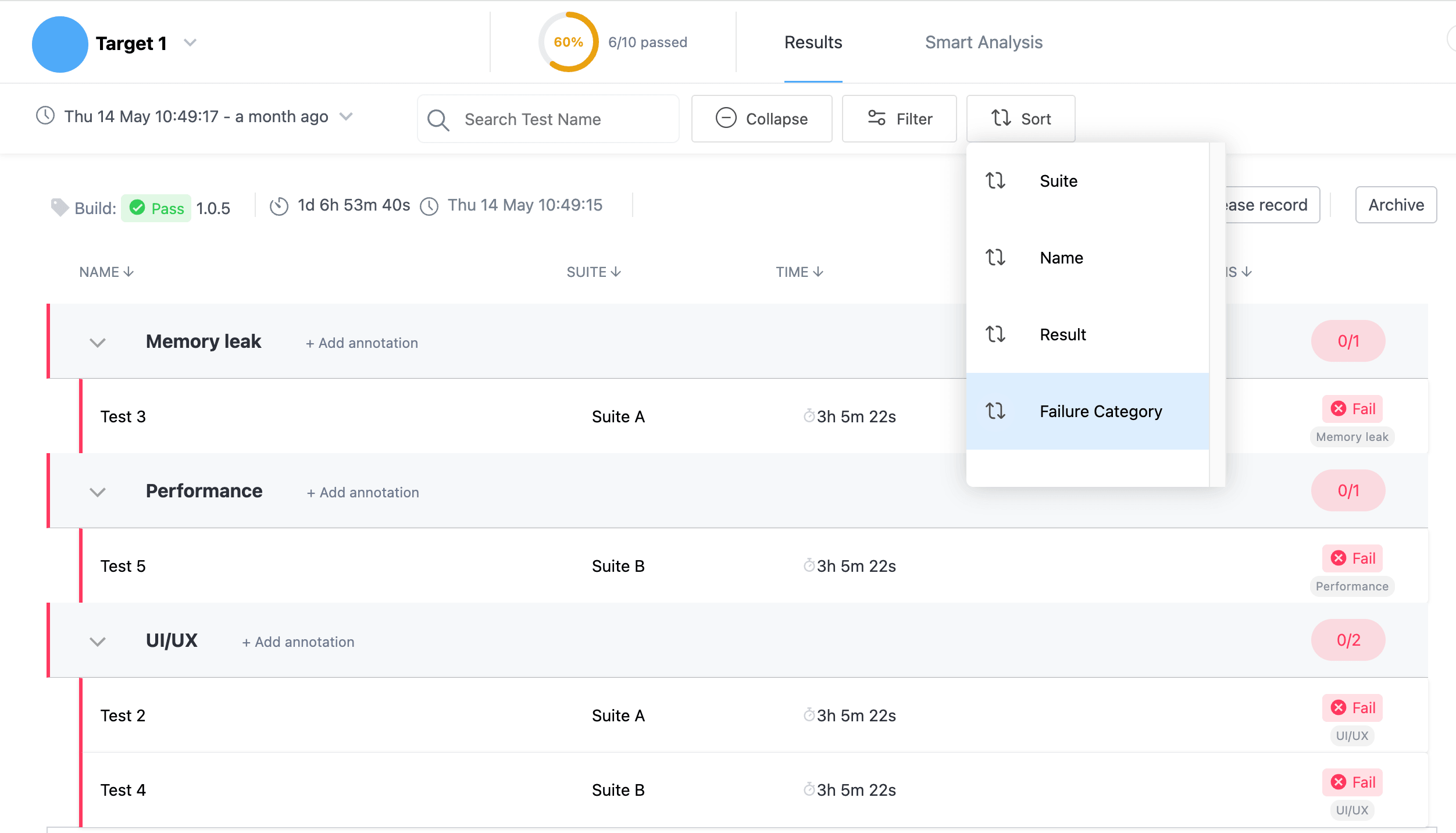
The results view header already has sort options for Suite, Name, Result, and Priority. There is now a Failure Category option alongside them. Select it and the view groups the failing test cases by their assigned category. Failures you have not labelled yet collect under an Uncategorized group, so nothing is hidden, and passing tests are left out, keeping the grouped view focused on failures.
This is where the labelling pays off. A run with a long list of failures resolves into a handful of categories, and you can see how the failures distribute across them, which root cause accounts for the most, and how many genuinely separate problems remain. As with assignment, the grouping updates as you label, so the picture comes together while you triage rather than after.
Managing categories
Categories are managed from the Tesults configuration menu, where you can rename them as your understanding of a problem sharpens, or remove ones you no longer use. Renaming is separate from assignment, so you can relabel a category without disturbing the test cases already assigned to it, and your set of categories can evolve over time without rework.
Why categorize failures over time?
Grouping a single run is handy. Tracking categories across runs is where the longer term value sits. When the same category keeps reappearing, that is a signal worth acting on. An infrastructure category that shows up every release points at a systemic problem better fixed properly than worked around each time. Categorizing also helps you prioritise: when failures are grouped by root cause, you can see which category is causing the most disruption and address that first, rather than working through a flat list in whatever order it happens to be in. Combined with a retained history of results, the categories build up into a recurring picture of what tends to break. (If you are not yet keeping that history, see how to keep a history of test results instead of losing them after each CI run.)
Failure Categories are available now in the results view. Open a failing test case, assign a category from the drawer, and sort by Failure Category to group your failures by root cause. Full detail is in the results documentation.