
Results
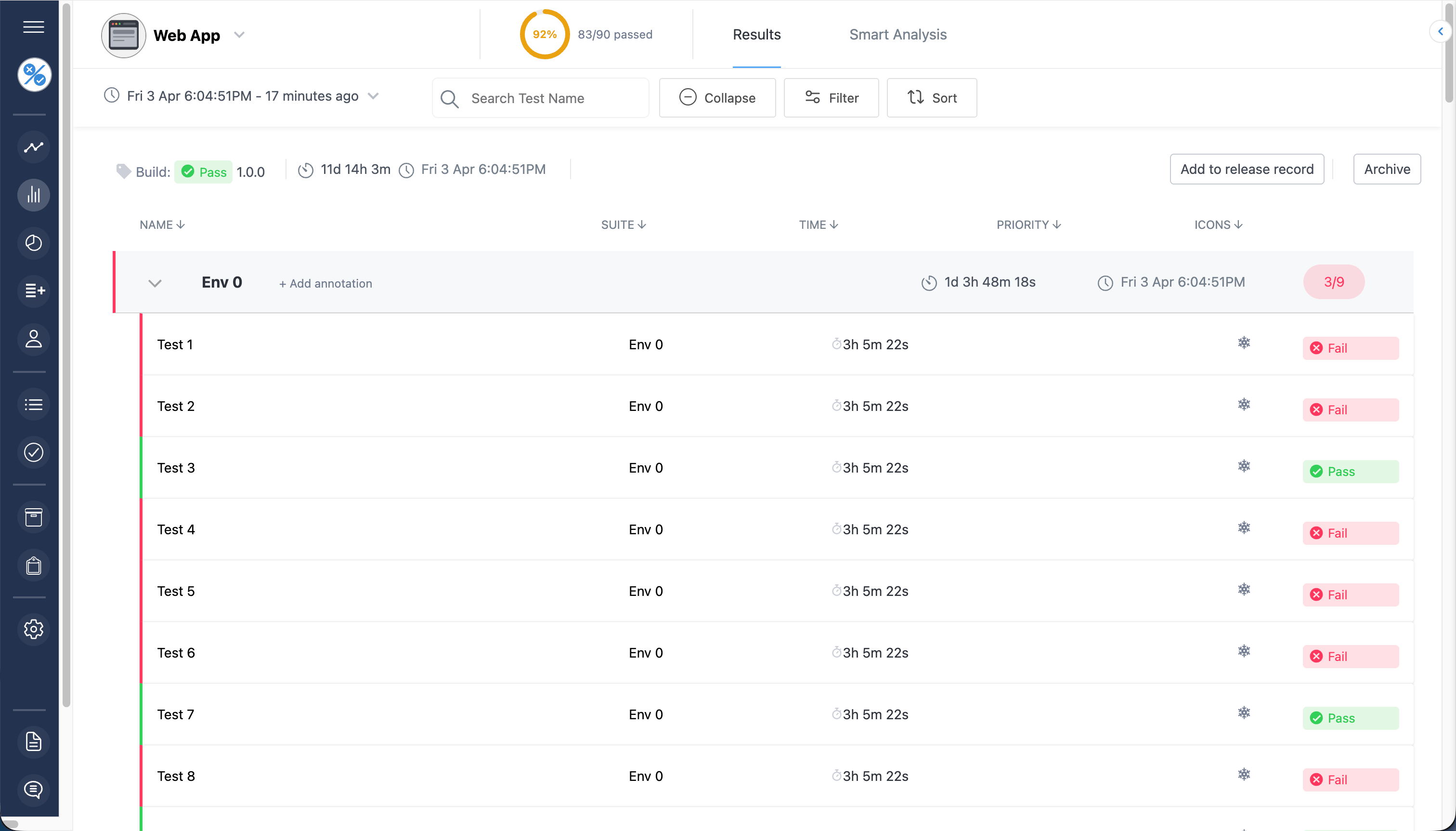
Click Results from the menu to view results.
The results view includes key information about the latest test run for each target (test job) and easy navigation to previous test runs.
Test suites are grouped together and can be traversed quickly by expanding and collapsing suites to get a comprehensive understanding of the entire test run. Click on a test case to bring up test case details. Drill down into details, assign failing test cases to team members, comment and view images and files associated with the test case.
Ask about these results
Open Ask about these results above the results to ask what needs attention, what changed, or which tests have inconsistent results. Choose a suggested question or enter your own, then select Ask question. Selecting a suggestion only fills in the question; it does not submit it.
The answer uses up to 10 runs ending at the selected run, all from the selected target. Selecting an earlier run excludes later runs. The answer shows the history examined and links to supporting runs or test cases so you can check the evidence.
Scope and limitations
- Results use the target's result interpretation rules. Tests absent from a run are not treated as passing.
- Run totals cover all tests. Individual test details cover up to 100 unique tests, prioritizing non-passing results. Long details may be shortened; the answer shows when evidence is limited.
- This is not a search across projects or targets, and it does not inspect your source code or attached files. Suggested causes are hypotheses, not confirmed diagnoses.
- Answers do not change results, create issues, or approve a release. Review the linked evidence before acting.
You must be signed in with read access and access to AI analysis for the project. The panel is available in Results and Supplemental for non-archived runs, not shared result links.
Questions can contain up to 2,000 characters. Limits are 6 questions per user per minute and 100 per project per hour, shared across its users. Wait for an answer before submitting another question. If a limit is reached, try again later.
To ask questions from your own AI agent, use the Tesults MCP server. For programmatic access, use the Insights API. The in-app question form is separate from these public API tools.