How to Share Test Results With Your Team
Why screenshotting results into chat does not scale, and how to give a whole team live access to test results with roles, notifications, and one shared dashboard
Aug 12, 2026
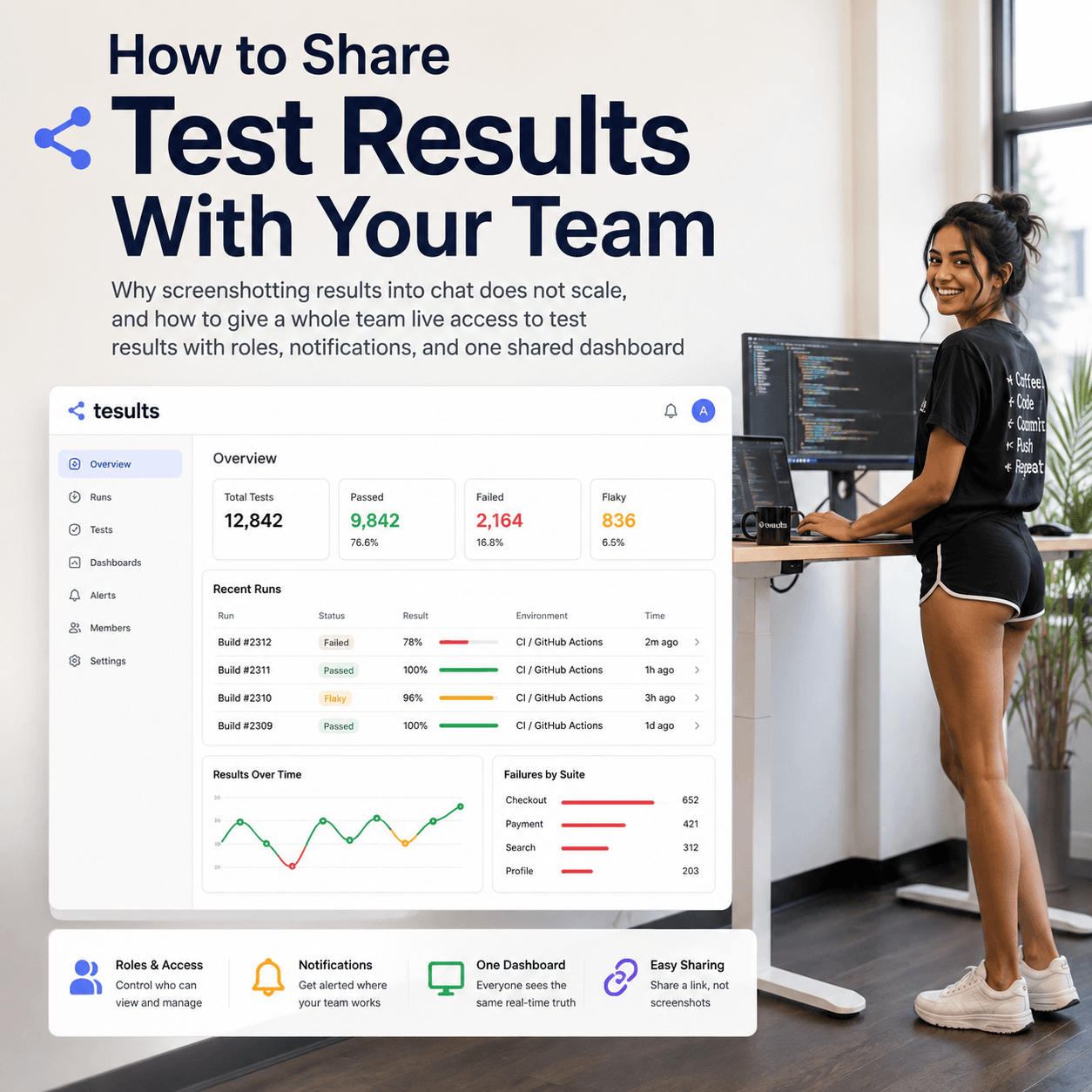
The usual way test results get shared is someone screenshots their terminal into a chat channel, and it does not scale past one person and one moment. The screenshot is stale the instant the next run happens, only the person who ran the tests has the real results, and anyone who joins later has no history to look at. To share test results properly you want the results in one place that the whole team can open, with each person given the right level of access, and with notifications pushing the outcomes to where the team already works. This post covers why the screenshot habit breaks down and how to give a team genuine shared access to results rather than a picture of them.
Why doesn't screenshotting results into chat work?
Pasting a result into Slack feels like sharing, but it shares a snapshot, not the results. The moment the next run happens the picture is out of date, and nobody can drill into it, filter it, or see what a specific test did over time, because it is an image, not data. The person who ran the suite is the only one who actually has the results, which makes them a bottleneck: every question about what failed and why routes back through them.
It also leaves no history. Someone who joins the team next month, or anyone trying to understand whether a failure is new or recurring, has nothing to look at but a scroll of old screenshots with no structure. Sharing results should mean the team can see the same live results you can, not that you periodically broadcast a photo of your screen.
What does actually sharing results look like?
It looks like the results living in one place that everyone on the team can open and see the same view of, updated automatically as runs happen. Instead of a person forwarding a snapshot, the results are a shared resource: the latest run, the history behind it, and the ability for anyone to look at a specific test or failure themselves rather than asking whoever ran it. The tests report their results to that shared location once, and the whole team reads from it.
Tesults works this way. Runs are pushed to a project, and everyone added to the project sees the same results and history without anyone forwarding anything. The reporting is covered per framework in the integration guides; the point here is what happens once results are there, which is that sharing becomes a matter of who has access rather than who remembered to paste a screenshot.
When you do want to point someone at something specific, you can share the link to a particular target, run, or view directly, so instead of a screenshot you send a link that opens the live results at exactly the place you are looking at, and stays current rather than freezing at the moment you copied it.
How do you give the right people the right access?
Sharing results with a team is not all or nothing. Different people need different levels of access, and Tesults handles this with team members and roles. You add team members by email from the configuration menu, or in bulk with a CSV of email addresses, and each gets an invitation to the project. From there each member has a role that controls what they can do.
The roles run from ordinary members up to the project owner. A Member can view results, assign failing tests to people as tasks, and receive notifications, which is the right level for most of a team. A Moderator can also submit manual results, delete runs, and change a result in the case of a false positive or negative. An Administrator can additionally manage team members and targets and edit project information. Above those, an Officer can manage the plan and payment details, and the Owner has full control including transferring or deleting the project. The effect is that you can give the whole team visibility while keeping the ability to change results, manage billing, or restructure the project limited to the people who should have it.
Members can also be removed for security when they should no longer have access, though there is no need to remove people purely to control cost: inactive users automatically stop being billed for under the fair billing policy, so sharing results widely does not mean paying for everyone who rarely logs in.
What about larger teams and single sign on?
Adding members by email is fine for a small team, but for a larger organisation you do not want to manage a list by hand. Tesults supports Single Sign On using SAML or Google OAuth, and with SSO enabled you do not add team members manually at all: anyone with the sign in link for your project can sign in and is added automatically, defaulting to a moderator role. That turns sharing results across a large team into a matter of distributing one sign in link rather than maintaining a roster, and it ties access to your existing identity provider so it follows the same joiner and leaver process as the rest of your systems.
How does the team find out when something fails?
Shared access means people can look, but you also want the results to come to the team rather than relying on everyone remembering to check. Notifications handle this. Each team member can have email notifications toggled on or off individually, and beyond email, Tesults integrates with the places teams already work, Slack, Microsoft Teams, Mattermost, and PagerDuty, so a run result or a failure can post into the channel the team already watches. There is also a mobile app for seeing results away from a desk.
The combination is what replaces the screenshot habit: a direct link to the exact result you want someone to see, results in one shared place with the right access for each person, and notifications that push outcomes into email or the channels the team already uses. Nobody has to broadcast a snapshot, because the results are already shared and the team is already told.
There is also a broader option when you want results visible beyond the team. Public results can be enabled per target or per project, which makes those results viewable without signing in. That is useful for an open source project that wants its test results out in the open, or for sharing status with people outside the project who should not need an account. It is off by default, so results stay private unless you deliberately turn it on for a specific target or project.
Sharing test results is not really about getting a result in front of one channel once, it is about the whole team having ongoing access to the same live results and history, with each person at the right level and the outcomes flowing to where they already work. A screenshot shares a picture that is out of date immediately and leaves the person who ran the tests as the bottleneck. Shared access with roles and notifications shares the results themselves. Team management, roles, and single sign on are documented under team members, and this pairs naturally with keeping the history behind those results, covered in how to keep a history of test results instead of losing them after each CI run.